#
Remove Video from Hero

#
How to Disable the Video Hero on an entry
The screenshot below shows a portion of the "Featured Video" entry field from the control panel:
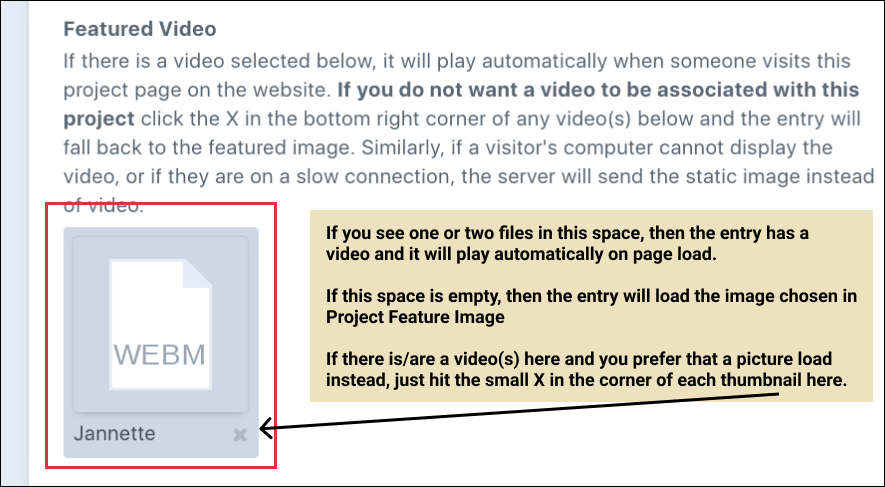
The directions above will turn the video off on the entry, but nothing will be deleted. The video file will remain in our media library and can be enabled again later should you so desire.
#
To Reenable A Video
If you want to reenable a video for an entry where the video is disabled, click the "select an asset" button in the "Featured Video" field.
Use the search at the top to show only the videos whose names match the current project, if you so desire. Or, to see all videos, enter "mp4" and/or "webm" in the search box.
If you happen to see two video files in your search, select both (one will be .mp4 and the other .webm. The two formats are for compatibility.
#
Please Do Not Upload Video Without Talking to your Web Developer!
The videos that are on the site each required several hours of processing so they look as good as possible with the smallest possible file size. All of the video files currently in the media library on the server have been processed like this, and any are safe to use.
It is highly unlikely, though, that other videos have similar processing, so while you can upload pretty much any video and the site will dutifully display it, without my magical processing sauce, it could make for a negative experience for our visitor.
Thus, if you have a video to post, please send it on over to me, give me a few hours to let the processing run, and I'll put it in the media library for you.
(Your photos go through a somewhat similar form of processing, but to have the server do the video automatically like it does the photos would require a signficantly more powerful (and thus more costly) server. Since this is really only icing on the cake, it's easier for me to just do them by hand.